Sharp PN-E421 Owner's Manual Page 60
- Page / 117
- Table of contents
- BOOKMARKS

- OPERATION MANUAL 1
- Contents 2
- Creating/Editing Schedules 3
- Panel Management and Option 3
- Distributing schedules 3
- Schedule Management 3
- Introduction 5
- Trademarks 6
- How to read this manual 6
- Denitions 7
- System operation precautions 7
- Program distribution workow 9
- Server Scheduler 10
- Installing/Launching 11
- Auto login settings 15
- Screen saver settings 16
- Power control 17
- IME Toolbar settings 19
- Windows Update settings 20
- Resident application settings 21
- Personal rewall settings 22
- ●Closing the Launcher window 26
- ●The Launcher window 26
- Program Creation/Editing 28
- 2) Menus 29
- 3) Toolbar 29
- 5) Settings window 29
- Creating programs 30
- ●Positioning content (Layout) 31
- Program Editor 32
- Using the grid 33
- Display priority order 33
- Content preview 36
- Playlists 36
- Properties of content 37
- ●Setting the scroll message 38
- Creating scroll message les 40
- ●Setting audio and music 44
- ●Setting the PIP window 45
- ●Saving a program 45
- Save program as 46
- Program thumbnails 46
- Program Folder 46
- ●Opening a program 47
- ●Checking a program 47
- ●Deleting a program 48
- Exporting a program 50
- Importing a program 51
- Conditional Content 52
- Conditional Content Editor 53
- Creating Conditional Content 54
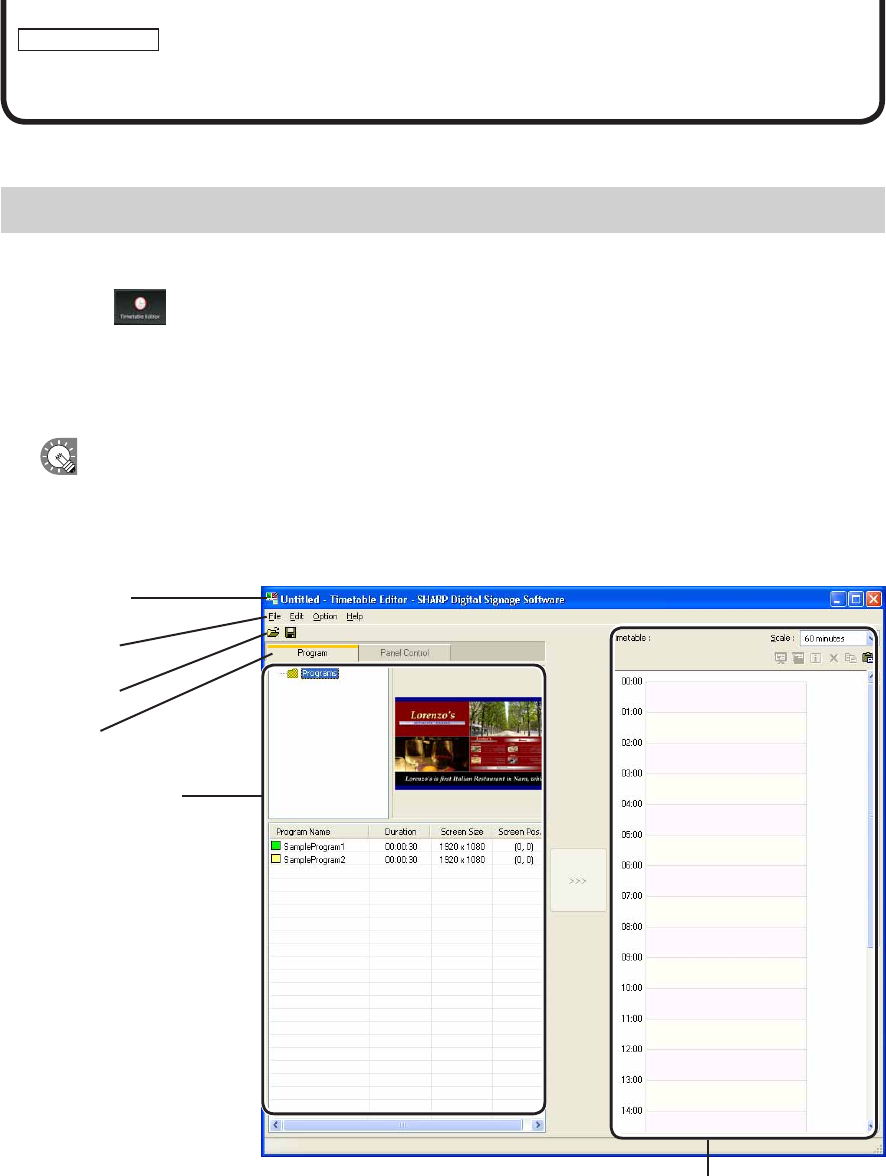
- Creating/Editing a Timetable 60
- 5) Program/Panel Control list 61
- 6) Timetable 61
- Creating a timetable 62
- Timetable Editor 63
- ●Adjusting a timetable 65
- ●Saving a timetable 66
- ●Opening a timetable 66
- ●Checking a timetable 67
- ●Deleting a timetable 67
- Exporting a timetable 68
- Importing a timetable 69
- 4) “Timetable” list 71
- 5) Calendar 71
- Creating a schedule 72
- The calendar 73
- ●Saving a schedule 74
- ●Opening a schedule 74
- ●Deleting a schedule 75
- ●Changing schedule name 75
- Exporting a schedule 76
- Importing a schedule 77
- ●Adding/editing a panel 79
- ●Adding/editing a group 80
- ●Controlling a panel manually 81
- ●Deleting a panel or group 81
- ●Launching Option 82
- ●Checking version information 82
- Schedule Distribution Tool 86
- ●Distributing to your own PC 87
- Displaying break-in programs 90
- ●List of Distribution Log 95
- Updating 96
- FTP Server 98
- Client Scheduler 99
- FTP Server/Client Scheduler 100
- Version information 104
- Exiting Client Scheduler 104
- Program Viewer 105
- Key/Mouse Monitoring 106
- Key/Mouse Monitoring Tool 107
- Monitoring status 109
- 2) Toolbar 110
- 3) Group tree 111
- 4) Panel list 111
- Status Monitoring Tool 112
- ●Controlling target PC power 113
- ●Changing thumbnail size 115
- PN-SS01/SS02/SV0110D(2) 117
Related products and manuals for Software Sharp PN-E421
 (63 pages)
(39 pages)
(63 pages)
(39 pages)


 (148 pages)
(96 pages)
(38 pages)
(2 pages)
(16 pages)
(12 pages)
(420 pages)
(43 pages)
(8 pages)
(152 pages)
(148 pages)
(96 pages)
(38 pages)
(2 pages)
(16 pages)
(12 pages)
(420 pages)
(43 pages)
(8 pages)
(152 pages)
 (1 pages)
(355 pages)
(4 pages)
(1 pages)
(355 pages)
(4 pages)
© 2020, manymanuals.com. All rights reserved. | 0.027 s |
 Manymanuals.com
 Manymanuals.de
 Manymanuals.fr
 Manymanuals.it
 Manymanuals.pl
 Manymanuals.cz
 Manymanuals.es
 Manymanuals-pt.com
Comments to this Manuals