Sharp SL-5500 User Manual Page 106
- Page / 148
- Table of contents
- BOOKMARKS

- OPERATION MANUAL 1
- Table of Contents 2
- Introduction 6
- About this manual 7
- Address Book 8
- <Address fields> 9
- Index Screen 10
- Detail Screen 11
- Attaching a Note 12
- Address Book Setup 13
- Address Book 9 14
- Calendar 16
- Week screen 17
- Month screen 18
- Adding Events 19
- To set an alarm 20
- To repeat an event 20
- Modifying a Calendar event 23
- Calendar 19 24
- Calendar Setup 25
- Todo List 26
- Detail screen 27
- Edit screen 27
- Todo List 23 28
- Modifying a Todo List entry 29
- Deleting Todo task entries 30
- Other functions 31
- Text Editor 32
- Modifying a Text Editor entry 34
- Deleting a Text Editor entry 34
- Renaming the Text Editor file 35
- Media Player 36
- Index screen 37
- Playback screens 38
- For movie files 39
- For music files 40
- Playing a file 41
- Adding files to the Playlist 42
- To stop playback 43
- To playback at random 43
- Image Viewer 46
- Image view screen 47
- Viewing images 48
- Delay time slider 49
- Repeat checkbox 49
- Auto-play checkbox 49
- 44 Image Viewer 49
- Opera Browser 50
- 46 Opera Browser 51
- Browsing the Web page 52
- 48 Opera Browser 53
- Using the Search function 54
- Using the bookmarks 54
- Deleting the bookmark 55
- Editing bookmarks 55
- Changing the bookmark order 56
- 52 Opera Browser 57
- EMail 55 60
- Examine (Detail) screen 61
- New mail screen 62
- E-mail accounts 63
- EMail 59 64
- Use signature checkbox 64
- Creating an e-mail message 66
- (File attachment) 67
- Checking e-mail contents 68
- Sending an e-mail message 69
- Receiving e-mail messages 70
- Replying to an e-mail message 71
- Replying to all 71
- Forwarding an e-mail message 71
- EMail 67 72
- Data menu 72
- Attachment list 72
- Deleting e-mail messages 73
- EMail 69 74
- Select for delete 74
- Creating a new query 75
- EMail 71 76
- Sort by query 76
- To edit the query 77
- To delete a query 77
- Creating a new mailbox folder 78
- To delete a mailbox folder 79
- City Time 82
- 78 Extras 83
- Using a Stopwatch 84
- Calculator 85
- When an error message appears 86
- System Info 87
- Attaching the microphone 88
- 84 Extras 89
- Recording 90
- Setting up the preferences 91
- Help Browser 92
- Removing bookmarks 93
- Asteroids 94
- Mindbreaker 94
- Mine Hunt 95
- Patience 95
- Word Game 95
- Settings 96
- 92 Settings 97
- Add/Remove Software 98
- Installing Package files 99
- Searching for a package file 103
- Uninstalling package files 104
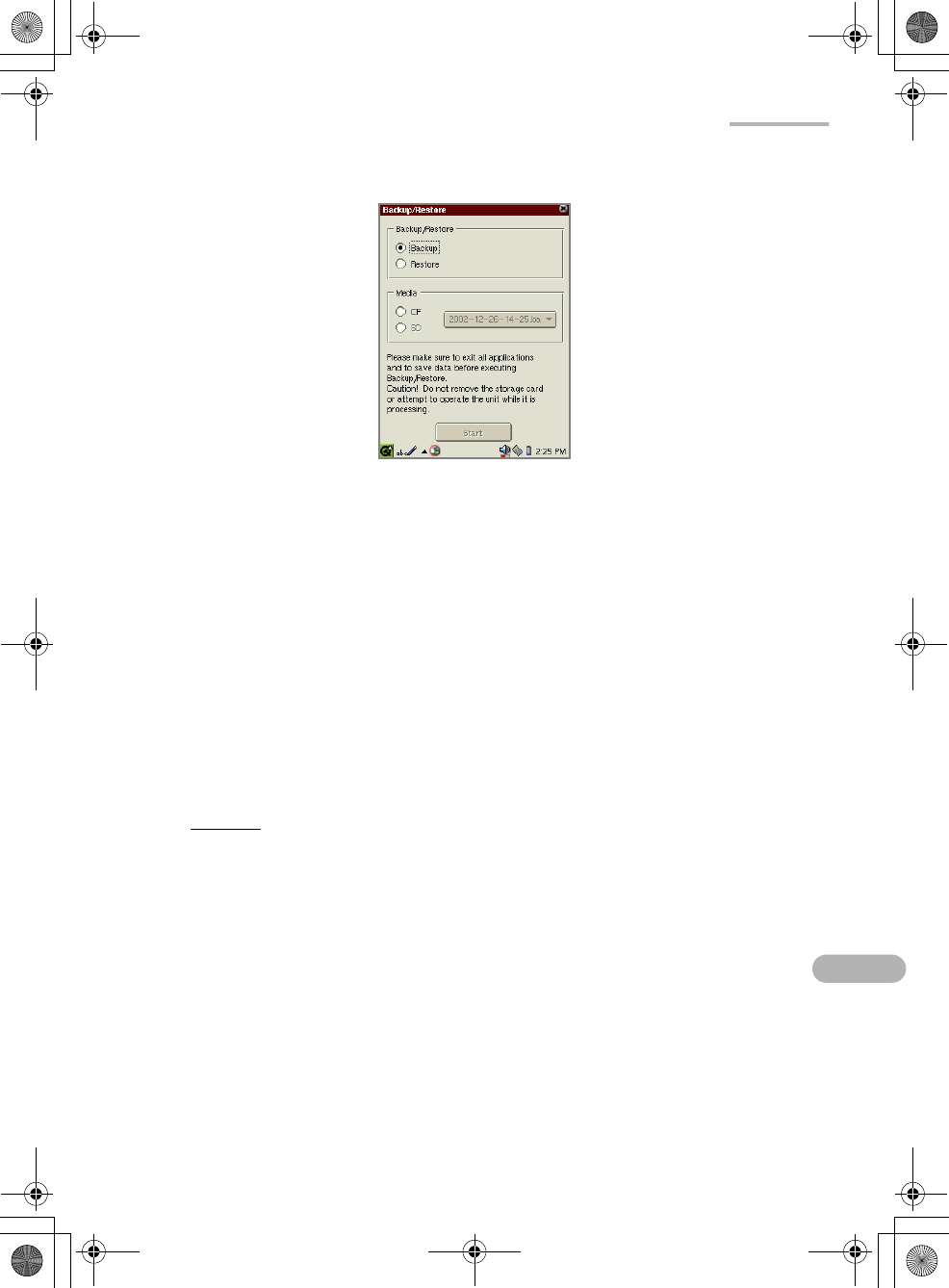
- Backup/Restore 105
- Settings 101 106
- Beam Receive 107
- Selecting the receiving mode 108
- Receiving data in Manual mode 109
- Settings 105 110
- File information 110
- Add button 110
- Information of the 110
- Setting the Appearance 111
- Using the Application Key 112
- 108 Settings 113
- Brightness control slider 113
- Dim light after checkbox 113
- Light off after checkbox 113
- Security 114
- Overview 115
- Setting the passcode 115
- Changing the passcode 116
- Clearing the passcode 116
- Shutting down 117
- Internet Settings 118
- 114 Internet Settings 119
- Creating a new LAN setting 120
- Internet Settings 117 122
- Primary DNS field 122
- Secondary DNS field 122
- Proxy drop-down 122
- 118 Internet Settings 123
- 120 Internet Settings 125
- View area 125
- Register button 125
- No proxies 128
- Auto configure proxies 129
- Set Proxies 129
- Modifying settings 131
- Deleting settings 131
- Connecting or disconnecting 131
- Network 132
- & Sync 132
- Creating a new setting 134
- Internet Settings 131 136
- Auto-detect name 136
- First DNS field 136
- Second DNS field 136
- 132 Internet Settings 137
- Proxy drop-down list 137
- Internet Settings 133 138
- 136 Internet Settings 141
- Proxy drop 141
- Modifying the settings 142
- Proxim Configuration 143
- Wireless LAN Setting 143
- Enter the setting 144
- Tap to save the setting 144
- Appendix 146
- 142 Appendix 147
Related products and manuals for PDAs Sharp SL-5500
 (36 pages)
(40 pages)
(36 pages)
(40 pages)
 (52 pages) (102 pages)
(91 pages)
(2 pages)
(2 pages)
(52 pages) (102 pages)
(91 pages)
(2 pages)
(2 pages)
© 2020, manymanuals.com. All rights reserved. | 0.079 s |
 Manymanuals.com
 Manymanuals.de
 Manymanuals.fr
 Manymanuals.it
 Manymanuals.pl
 Manymanuals.cz
 Manymanuals.es
 Manymanuals-pt.com
Comments to this Manuals