Sharp PC-9300 Technical Information Page 47

  • Download
  • Add to my manuals
  • Print
  • Page
    / 68
  • Table of contents
  • TROUBLESHOOTING
  • BOOKMARKS
  • Rated. / 5. Based on customer reviews
Page view 46
6 Accessories
www.turnerbiosystems.com 42
3. Power on the ModulusMicroplate Reader.
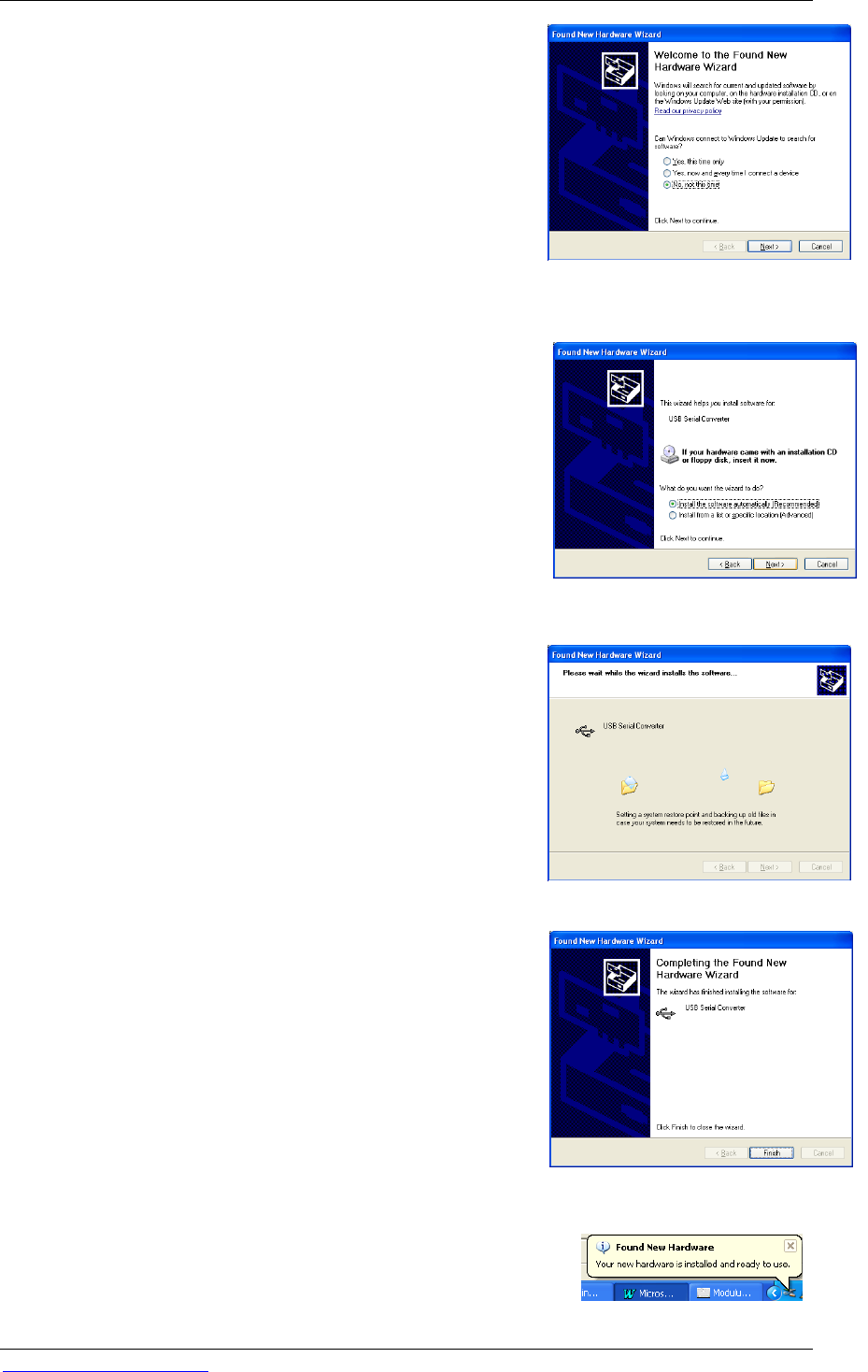
4. The FOUND A NEW HARDWARE wizard will
appear. Follow the step-by-step instructions below to
complete the wizard.
5. Select the option NO, NOT AT THIS TIME on the
WELCOME screen then click on the NEXT button to
continue.
6. When asked, “What do you want the wizard to do?”
select the default option INSTALL THE SOFTWARE
AUTOMATICALLY. Click on the NEXT button to
continue.
7. The driver will begin to install. A warning message
will appear to inform the user that the driver has not
passed Microsoft
Windows Logo testing. Click on
the CONTINUE ANYWAY button.
8. When the driver finishes installing, a status window
will appear.
9. Click on the FINISH button when all of the
installation steps have been completed
10. A message reading “Your new hardware is installed
and ready to use” will appear on the Taskbar to
confirm successful installation.
6.2.6 Connecting to a PC Using a USB Cable
1. Power on the instrument and PC.
2. Connect the ModulusMicroplate Reader to the PC
using a USB cable. Use the USB port on the back
panel of the instrument. The USB port on the front of
the instrument is only used for data transfer.
3. From the HOME screen, go to the INSTRUMENT
CONTROL screen and touch the TOOLS button.
4. Touch the EXTERNAL PC CONTROL button.
5. Launch the ModulusMicroplate Reader PC
software from the PC.
6. Check the INSTRUMENT STATUS bar of the PC
software for connectivity. When the connection is
successful, the INSTRUMENT STATUS bar should
read “Ready”.
7. If not, touch the TOOLS button of the INSTRUMENT
CONTROL screen of the PC and confirm that the
Instrument Port setting is on “USB”.
All instrument control should be done from the computer
at this point. To return control back to the Modulus
Microplate Reader, follow the instructions in Section
6.2.8.
Figure 6-2: Step 5 of Installing the
Drivers
Figure 6-3: Step 6 of Installing the
Drivers
Figure 6-4: Step 8 of Installing the
Drivers
Figure 6-5: Step 9 of Installing the
Drivers
Figure 6-6: Step 10 of Installing the Drivers
Page view 46
1 2 ... 42 43 44 45 46 47 48 49 50 51 52 ... 67 68

Comments to this Manuals

No comments

Dell 56192483 Handbücher

Bedienungsanleitungen und Benutzerhandbücher für Server Dell 56192483.
Wir stellen 1 PDF-Handbücher Dell 56192483 zum kostenlosen herunterladen nach Dokumenttypen zur Verfügung Datenblatt


Dell 56192483 Datenblatt (1 Seiten)


Marke: Dell | Kategorie: Servers | Größe: 0.11 MB |


Inhaltsverzeichnis


Weitere Produkte und Handbücher für Server Dell

Modelle Dokumententyp
57099896 Datenblatt DELL PowerEdge R320, 1 Seiten
10511100 Datenblatt   DELL PowerEdge VRTX, 1 Seiten
57099857 Datenblatt   DELL PowerEdge T620, 1 Seiten
57095344 Datenblatt   DELL PowerEdge R320, 1 Seiten
56191528 Datenblatt   DELL PowerEdge T320, 1 Seiten
56192349 Datenblatt   DELL PowerEdge T320, 1 Seiten
56192459 Datenblatt   DELL PowerEdge R210 II, 1 Seiten
56192127 Datenblatt   DELL PowerEdge R320, 1 Seiten
56192327 Datenblatt   DELL PowerEdge T110 II, 1 Seiten
R510-E111 Datenblatt   DELL PowerEdge R510, 2 Seiten
13668053 Datenblatt   DELL PowerEdge R510, 2 Seiten
1009566658886 Datenblatt   DELL PowerEdge R510, 73 Seiten
PE-R710-M211 Datenblatt     DELL PowerEdge R710, 54 Seiten
PowerEdge R210 Datenblatt   DELL PowerEdge R210, 2 Seiten
PE-T410-M211 Datenblatt   DELL PowerEdge T410, 56 Seiten
R320 Betriebsanweisung   DELL PowerEdge R320, 15 Seiten
PowerEdge T320 Bedienungshandbuch   DELL PowerEdge T320, 167 Seiten
T20 Bedienungshandbuch   DELL PowerEdge T20, 80 Seiten
R430 Bedienungshandbuch   DELL PowerEdge R430, 155 Seiten
M630P Bedienungshandbuch   DELL PowerEdge M630P, 115 Seiten