Sharp M450U Specifications Page 185
- Page / 200
- Table of contents
- TROUBLESHOOTING
- BOOKMARKS

- MX-M350U 1
- MX-M450U 1
- MX-M350N 1
- MX-M450N 1
- FOR YOUR RECORDS 2
- Trademark acknowledgments 3
- Part 1: General Information 5
- PRODUCT CONFIGURATIONS 7
- OPERATION MANUALS 8
- INSTALLATION REQUIREMENTS 9
- CAUTIONS 10
- Laser Information 11
- CONTENTS 12
- CHAPTER 1 15
- INTRODUCTION 16
- MAIN FEATURES 17
- CONFIDENTIAL 20
- See page 3-8 21
- Non-Offset mode 21
- Energy saving features 22
- PART NAMES AND FUNCTIONS 23
- Interior 24
- ■ Other optional equipment 26
- Operation panel 27
- Touch panel 28
- "JOB QUEUE" screen 29
- "COMPLETE" 29
- TURNING THE POWER ON AND OFF 31
- AUDITING MODE 32
- CHAPTER 2 33
- LOADING PAPER 34
- Specifications of paper trays 35
- ■ Applicable plain paper 36
- ■ Applicable special paper 36
- ■ User type 37
- Tray 2 and the bypass tray 38
- PAPER TYPE REGISTRATION 39
- Loading postcards 40
- Loading envelopes 40
- Printing onto envelopes 41
- ■ Loading transparency film 42
- Upper paper tray: 42
- Middle and lower paper trays: 42
- Lower paper tray: 43
- T 12-HOUR 45
- About the settings 46
- REPLACING THE TONER CARTRIDGE 47
- STORAGE OF SUPPLIES 48
- MISFEED REMOVAL 49
- Roller rotating knob A 50
- Transfer roller 50
- Photoconductive drum 50
- Roller rotating knob B 50
- Fusing unit open tab 50
- Misfeed in the duplex module 51
- ■ Misfeed in paper tray 1 52
- REMOVING AN ORIGINAL MISFEED 54
- CHAPTER 3 59
- DUPLEX MODULE 60
- Label facing up 61
- MAIL-BIN STACKER 63
- Top cover 64
- FINISHER 65
- Finisher functions 66
- Using the finisher functions 67
- Staple cartridge replacement 68
- ■ Checking the staple unit 69
- Misfeed in the finisher 70
- SADDLE STITCH FINISHER 72
- Supplies 73
- ■ Sort mode 73
- ■ Offset mode 73
- ■ Group mode 73
- ■ Staple sort mode 74
- ■ Saddle stitch function 75
- Roller rotating 77
- Staple unit 77
- Roller rotating knob D 81
- SHARP OSA 83
- APPLICATION COMMUNICATION 83
- MODULE (MX-AMX2) 83
- Operation in OSA mode 84
- ■ External count mode 85
- If login fails 85
- Part 2: Copier Operation 87
- CHAPTER 4 89
- AUTOMATIC DOCUMENT FEEDER 90
- PLACING ORIGINALS 91
- Document feeder tray 92
- Document glass 92
- [Example 1] 92
- [Example 2] 92
- CHECKING THE SIZE OF A PLACED 93
- ORIGINAL 93
- STORING, DELETING, AND USING 94
- ORIGINAL SIZES 94
- NORMAL COPYING 95
- 2-SIDED COPY 100
- SPECIAL MODES 101
- ADJUSTING THE EXPOSURE 102
- REDUCTION/ENLARGEMENT/ZOOM 103
- PAPER SELECT 104
- COPY RATIO 104
- Original 106
- SPECIAL PAPERS 108
- CHAPTER 5 109
- Margin shift 111
- Original Copy 112
- CANCEL OK 112
- Dual page copy 113
- Pamphlet copy 114
- PRINT ON COVER 115
- Job build 116
- Touch the [CHANGE] key 117
- [START] key 117
- Touch the [READ-END] key 117
- Tandem copy 118
- Press the [START] key 119
- Covers/inserts 120
- COVERS/INSERTS 121
- TRANSPARENCY 121
- CARD SHOTBOOK COPY 121
- (X) (Y) (Z) 123
- INSERTION 124
- SYSTEM SETTINGS 131
- Multi shot 132
- Book copy 134
- Card shot 135
- SIZE RESET 136
- Mirror image 137
- B/W reverse 137
- • Date print (page 5-33) 138
- • Page numbering (page 5-35) 138
- • Stamp (page 5-34) 138
- • Text (page 5-39) 138
- PRINT MENU 139
- 2-SIDED ORIGINAL TYPE 140
- ■ Printing the date on copies 141
- NUMBERING 142
- Print settings Front 144
- Storing text sequences 148
- SELECTED ITEM? 149
- DELETE MOVE 149
- STORING, USING AND DELETING 150
- JOB PROGRAMS 150
- Calling up a job program 151
- Deleting a stored job program 151
- INTERRUPTING A COPY RUN 152
- CHAPTER 6 153
- USER MAINTENANCE 154
- TROUBLESHOOTING 155
- CHAPTER 7 157
- OVERVIEW 158
- ■ Quick File folder 159
- ■ Main folder 159
- ■ Custom folder 159
- ■ Attributes of saved files 159
- A look at the operation panel 160
- Saving files 160
- Document filing icons 161
- SAVING A DOCUMENT IMAGE FILE 162
- 10-KEY PAD 164
- Print jobs 165
- Scan Save 166
- HALF TONE 167
- Touch the [SPECIAL MODES] 168
- CALLING UP AND USING A FILE 169
- START SEARCH 170
- UVWXYZOPQRSTJKLMNEFGHIABCD 171
- File selection screen 172
- ■ [Print] 173
- ■ Batch printing 174
- ■ [Send] 176
- ■ [Property change] 177
- N FOLDER OK 178
- AGE SEND 179
- JOB STATUS 179
- SETTINGS 179
- ■ Programming a user name 181
- DELETE THE USER NAME? 182
- ■ Creating a custom folder 183
- DELETE THE FOLDER? 184
- USER FOLDER 1 184
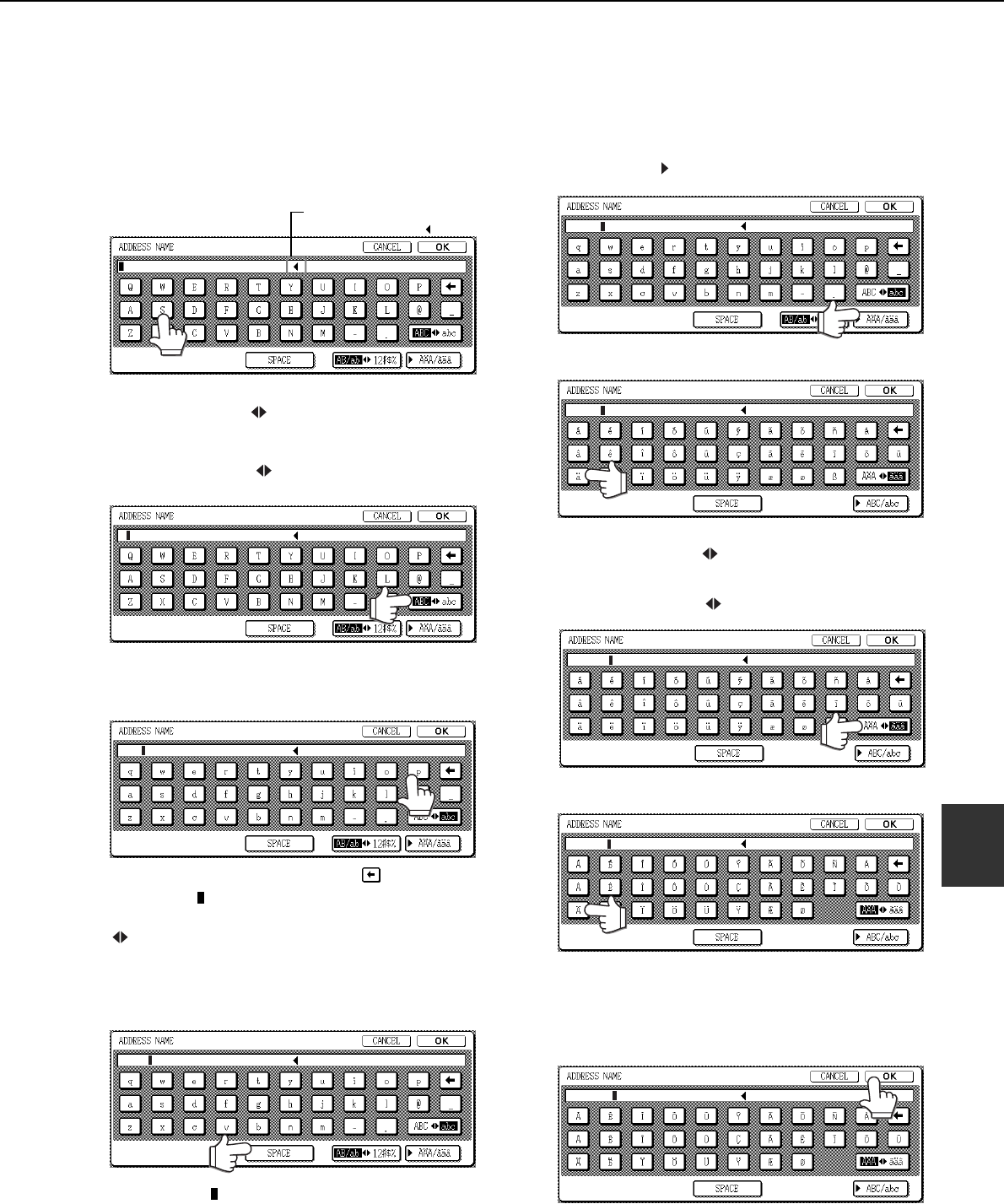
- ENTERING CHARACTERS 185
- \?/";: 186
- <> ! * 186
- CHAPTER 8 189
- Automatic document feeder 190
- LwA 6.8B or less 5.0B or less 191
- LIST OF COMBINATION OF 192
- PERIPHERAL DEVICES 192
- SHARP ELECTRONICS CORPORATION 200
Related products and manuals for Copiers Sharp M450U
 (36 pages)
(108 pages)
(4 pages)
(2 pages)
(8 pages)
(80 pages)
(98 pages)
(34 pages)
(36 pages)
(108 pages)
(4 pages)
(2 pages)
(8 pages)
(80 pages)
(98 pages)
(34 pages)
 (80 pages)
(8 pages)
(122 pages)
(121 pages)
(96 pages)
(2 pages)
(89 pages)
(18 pages)
(112 pages)
(66 pages)
(80 pages)
(8 pages)
(122 pages)
(121 pages)
(96 pages)
(2 pages)
(89 pages)
(18 pages)
(112 pages)
(66 pages)
© 2020, manymanuals.com. All rights reserved. | 0.041 s |
 Manymanuals.com
 Manymanuals.de
 Manymanuals.fr
 Manymanuals.it
 Manymanuals.pl
 Manymanuals.cz
 Manymanuals.es
 Manymanuals-pt.com
Comments to this Manuals