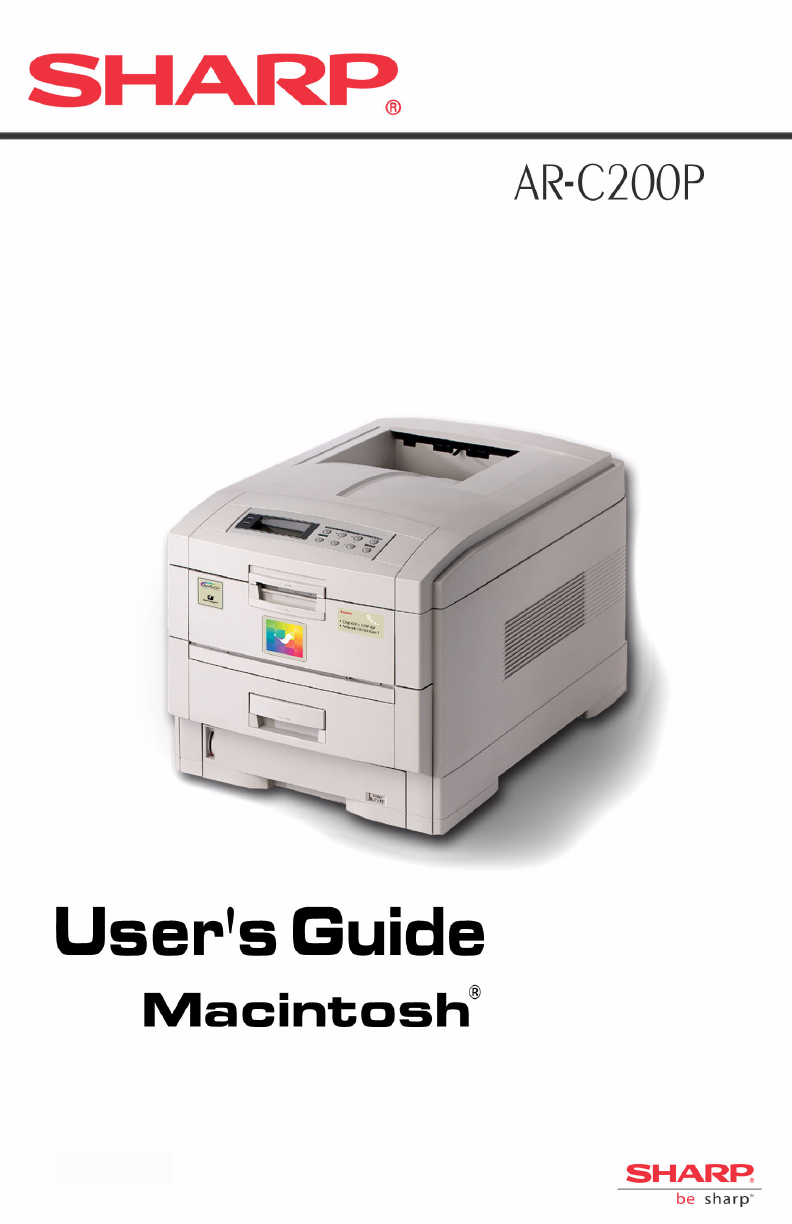
Sharp AR-C200P Owner's Manual
Browse online or download Owner's Manual for Multifunctionals Sharp AR-C200P. Sharp AR-C200P Owner's Manual User Manual
- Page / 193
- Table of contents
- TROUBLESHOOTING
- BOOKMARKS

- 59356701 2
- Notes, Cautions and Warnings 3
- Contents 4
- Introduction 7
- How To Use This Manual 8
- Printing Pages 9
- Getting Started 10
- CD Contents 11
- Printer Location 11
- Printer Components 12
- Setting up 15
- Toner Cartridge Installation 19
- Loading Paper 23
- Manual Feed 27
- Power Connection 28
- Control Panel 29
- Control Panel (continued) 30
- Menu Settings 31
- Printing the MenuMap 32
- Media Settings 33
- Selecting Paper Feed 33
- Selecting the Paper Size 34
- Media Recommendations 36
- Envelopes 37
- Paper Feed and Exit 38
- Printer Settings 40
- List of User Menu Settings 41
- Test Print Menu 42
- Shutdown Menu 42
- Print Menu 42
- Print Menu (continued) 43
- Media Menu 44
- Color Menu 45
- Media Menu (continued) 45
- Color Menu (continued) 46
- System Configuration Menu 48
- Item Value Description 49
- PCL Emulation Menu 50
- PPR Emulation Menu 53
- FX Emulation Menu 56
- Parallel Menu 58
- USB Menu 59
- Network Menu 59
- Memory Menu 60
- System Adjust Menu 62
- Maintenance Menu 63
- Usage Menu 64
- OP Menu 65
- OP Menu (continued) 66
- Block Device Menu 67
- Peak Power Control Menu 67
- COLOR MENU 69
- COLOR TUNING 69
- MAGENTA 69
- HIGHLIGHT 69
- MID-TONE 70
- MAGENTA DARK 70
- Switching Off 71
- Interfaces 72
- • Installing network software 73
- Macintosh OS 8.6-9.2.2 74
- ✓ appears 78
- Viewing Conditions 80
- Paper Type 81
- Color Option 84
- Rendering 86
- Color Simulation 87
- Job Option 89
- Job Type Plug-in 92
- Print Type 93
- MENU ITEM VALUE SELECT 94
- PRINT JOBS MENU 95
- ALL JOBS or the required job 95
- Duplex Printing 100
- Collating 101
- 3. Select Collated 102
- 4. Click Print 102
- Mac OS 8.6-9.2.2 103
- Installing the Utilities 104
- Fonts Downloader 105
- Color Swatch Utility 106
- Create a Custom Swatch 107
- Net Utility for EtherTalk 108
- Change Parse Type 109
- Print Config 109
- Check Print Server Status 109
- Configure Printer Type 110
- Reset/Restore 110
- Macintosh OS 10.1.5 111
- Monitor Color Profile Select 113
- Printer Driver Color Settings 114
- Monitor Settings 115
- RGB or CMYK? 116
- Matching Photographic Images 116
- Matching Specific Colors 117
- Printing Vivid Colors 117
- Driver Options 118
- Features 1 119
- Media Type 120
- Black Overprint 120
- Features 2 121
- Black Finish 122
- Color Setting 122
- Rendering Intent 123
- Printer Halftone 124
- Features 3 125
- Separations 126
- Media Check 126
- Toner Saving 126
- Page Rotate 126
- Multiple Pages on One Sheet 127
- Mac OS 10.1.5 130
- Troubleshooting 131
- LCD Message Meaning 132
- Paper Jams 134
- CAUTION! 136
- WARNING! 138
- Problem Solving 141
- Problems Printing 142
- Possible Cause Remedy 143
- Miscellaneous Problems 146
- Maintenance 148
- Important! 149
- Changing the Toner Cartridge 151
- Changing the Image Drum 157
- Changing the Transfer Belt 160
- 8. Close the top cover 163
- Changing the Fuser Unit 164
- 5. Close the top cover 166
- Cleaning the LED Heads 167
- 3. Close the top cover 168
- Transporting the Printer 169
- Accessories 171
- Duplex Unit 173
- Additional Paper Trays 174
- Additional Memory 176
- Specifications 179
- Consumables 182
- Fuser Unit 183
- Transfer Belt 183
- Factory Default Settings 184
- Media Menu 185
- Color Menu 186
- System Config Menu 187
- Item Factory Default Setting 188
- Parallel Menu (Windows Only) 189
- USB Menu 189
- Network Menu 189
- Memory Menu 190
- Disk Maintenance Menu 190
- System Adjust Menu 190
- Maintenance Menu 191
- Index • 192 192
- Index • 193 193
Summary of Contents
Sharp AR-C200P: Getting Started • 10Getting StartedUnpackingAfter unpacking the printer and choosing a suitable place to put it, check that all the n
Sharp AR-C200P: Macintosh OS 8.6-9.2.2 Operation • 100c. Select a border between the sheets, if desired.4. Click Print to print or Save Settings to sa
Sharp AR-C200P: Macintosh OS 8.6-9.2.2 Operation • 101a. For Duplexing (printing on both sides of the sheet), select Print on Both Sides.b. Select whi
Sharp AR-C200P: Macintosh OS 8.6-9.2.2 Operation • 1022. The General dialog box should already be displayed. If not, then select General from the menu
Sharp AR-C200P: Mac OS 8.6-9.2.2 Utilities • 103Mac OS 8.6-9.2.2UtilitiesGeneral InformationThe following utilities are supplied:• Fonts Downloader (s
Sharp AR-C200P: Mac OS 8.6-9.2.2 Utilities • 104Installing the Utilities1. Insert the CD supplied with your printer into the CD-ROM drive.2. Double-cl
Sharp AR-C200P: Mac OS 8.6-9.2.2 Utilities • 105Fonts DownloaderThis utility allows you to transfer fonts to the printer’s RAM or hard disk and to man
Sharp AR-C200P: Mac OS 8.6-9.2.2 Utilities • 106Color Swatch UtilityThings To Remember:• Your software may not be able to match colors using the infor
Sharp AR-C200P: Mac OS 8.6-9.2.2 Utilities • 107Create a Custom Swatch1. If the color you are seeking is not in the Simple Swatch, create a new color
Sharp AR-C200P: Mac OS 8.6-9.2.2 Utilities • 108Net Utility for EtherTalkThis utility allows changing the Zone and Name of the Sharp printer on a netw
Sharp AR-C200P: Mac OS 8.6-9.2.2 Utilities • 109Change Parse Type1. After selecting the printer, from the menu select Configure → Parsing.2. Select th
Sharp AR-C200P: Getting Started • 11CD ContentsThe CD supplied with your printer contains the drivers, software utilities and on-line manuals.Printer
Sharp AR-C200P: Mac OS 8.6-9.2.2 Utilities • 1102. You will be presented with the Status screen. Press OK to return to close.Configure Printer Type1.
Sharp AR-C200P: Macintosh OS 10.1.5 Printer Driver • 111Macintosh OS 10.1.5Printer Driver See your printed Software Installation Guide for information
Sharp AR-C200P: Macintosh OS 10.1.5 Operation • 112Macintosh OS 10.1.5OperationThis section explains how to change the printer’s operation for specifi
Sharp AR-C200P: Macintosh OS 10.1.5 Operation • 113toner or ink. Similarly, there are certain colors, (some yellows, for example), that can be printed
Sharp AR-C200P: Macintosh OS 10.1.5 Operation • 1142. Click the arrow next to Displays and select your monitor (in this example it is iMac). For Curre
Sharp AR-C200P: Macintosh OS 10.1.5 Operation • 115To access the color matching options in the driver discussed below:1. Access the printer settings p
Sharp AR-C200P: Macintosh OS 10.1.5 Operation • 116Paper TypeThe type of paper used can also significantly affect the printed color. For example, a pr
Sharp AR-C200P: Macintosh OS 10.1.5 Operation • 117RGB or CMYKIf you are printing photographic images from a graphics application such as Adobe Photos
Sharp AR-C200P: Macintosh OS 10.1.5 Operation • 118Driver OptionsSharp Printer FeaturesTo access Features 1:1. Select your printer.2. Open the drop-do
Sharp AR-C200P: Macintosh OS 10.1.5 Operation • 119Features 1Select from the following Features 1 options:Quality•Fast: 600 x 600 dpi•Fine: 1200 x 120
Sharp AR-C200P: Getting Started • 12Printer Components1. Top cover2. Control panel3. Top cover release catch4. Multi purpose tray (manual feed)5. Pap
Sharp AR-C200P: Macintosh OS 10.1.5 Operation • 120copies of large documents and you want to print them in sequence.Media TypeMany options are availab
Sharp AR-C200P: Macintosh OS 10.1.5 Operation • 121Features 2Select from the following Features 2 options:Color ControlSharp Color Matching This affec
Sharp AR-C200P: Macintosh OS 10.1.5 Operation • 122Print In GrayscaleNo color will print. The printer will interpret all colors as a variation of gray
Sharp AR-C200P: Macintosh OS 10.1.5 Operation • 123Monitor (6500k) VividOptimized for printing bright colors when using a monitor with a color tempera
Sharp AR-C200P: Macintosh OS 10.1.5 Operation • 124SaturationBest choice for printing bright and saturated colors if you don't necessarily care h
Sharp AR-C200P: Macintosh OS 10.1.5 Operation • 125Features 3Select from the following Features 3 options:Color SimulationAffects CMYK output only and
Sharp AR-C200P: Macintosh OS 10.1.5 Operation • 126SeparationsThis option affects output only, allowing you to print all colors or separate plates. Me
Sharp AR-C200P: Macintosh OS 10.1.5 Operation • 127Printing Using Special FeaturesMultiple Pages on One SheetTo print multiple pages on one sheet (N-U
Sharp AR-C200P: Macintosh OS 10.1.5 Operation • 128Duplex PrintingTo print on both sides of the paper:1. To access, first select your printer.2. Then
Sharp AR-C200P: Macintosh OS 10.1.5 Operation • 129CollatingCollating can be carried out with or without the optional hard disk drive (see page 171).
Sharp AR-C200P: Getting Started • 1311.LED heads (4)12.Discharge roller13.Fuser unit14.Image drum and toner cartridge (cyan)15.Image drum and toner
Sharp AR-C200P: Mac OS 10.1.5 Utilities • 130Mac OS 10.1.5UtilitiesImportant!All Utilities on the installation CD are unavailable for Mac OS 10.1.5 an
Sharp AR-C200P: Troubleshooting • 131TroubleshootingLCD MessagesThe liquid crystal display (LCD) on the control panel indicates the printer status an
Sharp AR-C200P: Troubleshooting • 132DATA ARRIVEData has been received but processing has not started yet.DATA PRESENTUn-printed data remains in buff
Sharp AR-C200P: Troubleshooting • 133RAM CHECKRAM is being checked after switching printer on.REGISTRATION ADJUST TESTRegistration adjustment being t
Sharp AR-C200P: Troubleshooting • 134Paper JamsPaper jams are indicated by an error message on the display. Paper jams are cleared as follows:1. Open
Sharp AR-C200P: Troubleshooting • 1352. Check the paper tray: Pull out the paper tray and remove any jammed paper from the printer, then gently push
Sharp AR-C200P: Troubleshooting • 1364. Check the transfer belt.a. Remove all four image drums as one unit in their cradle. and place the cradle on a
Sharp AR-C200P: Troubleshooting • 1375. Check behind the rear cover: open the rear cover and remove any jammed paper, then close the rear cover.
Sharp AR-C200P: Troubleshooting • 1386. Check the fuser unit:a. If necessary, lift out the toner/drum cradle to access the jammed page.a. Release the
Sharp AR-C200P: Troubleshooting • 1397. Check the duplex unit (if installed).a. Open the front cover, then slide out the duplex unit.b. Open the dupl
Sharp AR-C200P: Getting Started • 1418.Power connector19.Rear exit paper tray20.Interfaces and option card slott21.USB interface connector22.Parallel
Sharp AR-C200P: Troubleshooting • 140c. Close the duplex top cover and slide the duplex unit back into the printer.d. Close the front cover.8. Check
Sharp AR-C200P: Troubleshooting • 141Problem SolvingPaper Feed ProblemsIf paper jams are frequent:• More than one sheet feeds at a time.• Paper curls
Sharp AR-C200P: Troubleshooting • 142Problems Printing Cannot configure for USB connection.Cannot print.• PRNUSBX WRITE ERROR is displayed.Possible C
Sharp AR-C200P: Troubleshooting • 143Application error or general protection fault is displayed.Printing is slow.Printer requests paper size change t
Sharp AR-C200P: Troubleshooting • 144Problems with Poor Quality PrintingLongitudinal white stripesLongitudinal fadingFaint printingFading in patchesP
Sharp AR-C200P: Troubleshooting • 145Longitudinal black stripesFaint shading on unprinted sectionsBlurred letter edgesPossible Cause RemedyImage drum
Sharp AR-C200P: Troubleshooting • 146Miscellaneous ProblemsThe power is on, but the printer does not go online.Print processing does not start.Print
Sharp AR-C200P: Troubleshooting • 147Printer takes a long time to start printing.Toner rubs off when you rub the printed surface.Possible Cause Remed
Sharp AR-C200P: Maintenance • 148MaintenanceAdding PaperThe display indicates when the number of sheets of paper in any paper tray falls below 30.1.
Sharp AR-C200P: Maintenance • 1494. Check that the paper guides and rear stopper are snug against the paper.5. Close the paper tray gently.Important!
Sharp AR-C200P: Setting up • 15Setting upBefore connecting this printer to a computer and power supply, the toner cartridges must be installed and pa
Sharp AR-C200P: Maintenance • 1506. If installed, a lower paper tray cannot be used to print if there is no paper tray inserted above it.(1)(2)9(1)(2
Sharp AR-C200P: Maintenance • 151Changing the Toner CartridgeWhen the toner is running low, *** TONER LOW is displayed in the control panel (*** is t
Sharp AR-C200P: Maintenance • 1522. Check the color label of the toner cartridge to be changed.3. Move the blue lever (1) on the right of the toner c
Sharp AR-C200P: Maintenance • 1534. Unpack the new toner cartridge and remove the orange shipping clip.5. Shake the new toner cartridge back and fort
Sharp AR-C200P: Maintenance • 1546. Insert the new toner cartridge into the image drum, left side first, engaging the drum locating peg in the hole i
Sharp AR-C200P: Maintenance • 1558. Gently push the colored lever toward the back of the printer until it stops. This releases the toner into the ima
Sharp AR-C200P: Maintenance • 15610.Close the top cover.NOTEAfter installing the new toner cartridge, the message on the display TONER LOW or CHANGE
Sharp AR-C200P: Maintenance • 157Changing the Image DrumWhen the image drum reaches the end of its product life, *** CHANGE DRUM is displayed in the
Sharp AR-C200P: Maintenance • 1582. Remove the appropriate image drum/toner cartridge from the printer.3. Make sure the replacement image drum is the
Sharp AR-C200P: Maintenance • 1595. Install the new image drum in the printer.6. Push the tab inwards and remove the blanking plate from the image dr
Sharp AR-C200P: Setting up • 163. Remove the LED head restrainer from behind the LED heads in the top cover.
Sharp AR-C200P: Maintenance • 160Changing the Transfer BeltWhen the transfer belt reaches the end of its product life, CHANGE BELT UNIT is displayed
Sharp AR-C200P: Maintenance • 1613. Press back the lock lever (1) and, using the handles (2 and 3), remove the old transfer belt from the printer.4.
Sharp AR-C200P: Maintenance • 1625. Using the handles (2 and 3), align the pins (4) with the grooves (5) on the printer and insert the new transfer b
Sharp AR-C200P: Maintenance • 1637. Reinstall the cradle complete with the four image drums and toner cartridges in the printer.8. Close the top cove
Sharp AR-C200P: Maintenance • 164Changing the Fuser UnitWhen the fuser unit reaches the end of its product life, CHANGE FUSER UNIT is displayed in th
Sharp AR-C200P: Maintenance • 1652. Move the two locking levers (1) to the rear of the machine to release the fuser unit, then use the handle to remo
Sharp AR-C200P: Maintenance • 1665. Close the top cover.
Sharp AR-C200P: Maintenance • 167Cleaning the LED HeadsClean the LED heads when printing does not come out clearly, has white line, or when text is b
Sharp AR-C200P: Maintenance • 1682. Gently wipe the LED head surface with LED lens cleaner or soft tissue.3. Close the top cover.
Sharp AR-C200P: Maintenance • 169Transporting the PrinterThis printer is a precision machine. If it is transported without its protective packaging i
Sharp AR-C200P: Setting up • 174. Remove the four image drums and place them on a level surface.CAUTION!• Never expose image drums to light for more
Sharp AR-C200P: Maintenance • 1704. Seal the aperture on each image drum and its toner cartridge with plastic adhesive tape (1) to prevent any toner
Sharp AR-C200P: Accessories • 171AccessoriesDepending on the configuration of your printer, you may wish to add one or more of the following options
Sharp AR-C200P: Accessories • 1723. Hold the hard disk drive by the locking handle (1).4. Insert the handle locating lugs (2) and four locating feet
Sharp AR-C200P: Accessories • 173Duplex UnitThe Duplex Unit (Sharp AR-C20ADU) permits printing on both sides of the paper.Installing the Duplex Unit1
Sharp AR-C200P: Accessories • 174Additional Paper TraysTwo additional paper trays (Sharp AR-C20PFU) can be installed, providing a maximum total paper
Sharp AR-C200P: Accessories • 1752. Lower the printer gently on to the additional paper tray aligning the holes and connection socket on the base of
Sharp AR-C200P: Accessories • 176Additional Memory• Installing additional memory is recommended if carrying out duplex printing or if error messages
Sharp AR-C200P: Accessories • 1773. Insert the memory modules the slots as follows:a. Push out the white tabs at either end of the socket.b. Align th
Sharp AR-C200P: Accessories • 1784. Replace the main board and secure it with the two screws.5. Reconnect the printer interface cable and power cable
Sharp AR-C200P: Specifications • 179SpecificationsPrint method. LED exposed light source electronic photographic memoryResolution 600 x 1200 dpiColo
Sharp AR-C200P: Setting up • 185. Remove the protective sheets from each of the four image drums.6. Replace the four image drums into the printer mak
Sharp AR-C200P: Specifications • 180Network 100BASE-TX/10BASE-T (option)Print speed in pages per minute (ppm)[Print speed varies with paper size, me
Sharp AR-C200P: Specifications • 181Power consumptionOperating: 1350 max.; 500 W average (25°C)Standby: 1200 max.; 150 W average (25°C)Power Saving:
Sharp AR-C200P: Consumables • 182ConsumablesTonerDescription ... Order No.Black Toner...
Sharp AR-C200P: Consumables • 183Fuser UnitDescription ... Order No.Fuser Unit, 120V ...AR-C20
Sharp AR-C200P: Factory Default Settings • 184Factory Default SettingsPrint MenuItem Factory Default SettingCOPIES 1DUPLEXaa. Appears only when the o
Sharp AR-C200P: Factory Default Settings • 185Media MenuItem Factory Default SettingTRAY1 MEDIATYPE: PLAINTRAY1 MEDIAWEIGHT AUTOTRAY2 MEDIATYPEaa. Ap
Sharp AR-C200P: Factory Default Settings • 186Color MenuItem Factory Default SettingAUTO DENSITY MODE AUTOADJUST DENSITY [EXECUTE]COLOR TUNING [PRINT
Sharp AR-C200P: Factory Default Settings • 187System Config MenuPCL Emulation Menu (Windows Only)Item Factory Default SettingPOWER SAVE DELAY TIME 60
Sharp AR-C200P: Factory Default Settings • 188PPR Emulation Menu (Windows Only)FX Emulation Menu (Windows Only)Item Factory Default SettingCHARACTER
Sharp AR-C200P: Factory Default Settings • 189Parallel Menu (Windows Only)USB MenuNetwork MenuItem Factory Default SettingPARALLEL ENABLEBI-DIRECTION
Sharp AR-C200P: Setting up • 19Toner Cartridge Installation1. Remove the black toner cartridge from the package.2. Shake the toner cartridge back and
Sharp AR-C200P: Factory Default Settings • 190Memory MenuDisk Maintenance MenuApplies only when optional Hard Disk Drive is installed.System Adjust M
Sharp AR-C200P: Factory Default Settings • 191Maintenance MenuItem Factory Default SettingEEPROM RESET EXECUTEPOWER SAVE ENABLEPAPER BLACK SETTING 0P
Index • 192IndexAAccessoriesactivating in driver75, 76, 77, 78Additional paper trays . . . . . . .174BBlock device menu. . . . . . . . . . .67CCollati
Index • 193NNet utility for EtherTalk. . . . . .108Networkmenu . . . . . . . . . . . . . . . . . . . .59N-up printing . . . . . . . . . . . . . .127OO
Every effort has been made to ensure that the information in this document is complete, accurate, and up-to-date. The manufacturer assumes no responsi
Sharp AR-C200P: Setting up • 203. Remove the locking piece from behind the colored toner release lever.4. Insert the toner cartridge into the black i
Sharp AR-C200P: Setting up • 215. Gently push the toner cartridge down engaging the locking pin into the groove on the image drum.6. Gently push the
Sharp AR-C200P: Setting up • 227. Repeat the process for each color toner cartridge, being careful to match the color toner to the color image drum.8
Sharp AR-C200P: Setting up • 23Loading Paper1. Remove the paper tray from the printer.
Sharp AR-C200P: Setting up • 242. Adjust the paper guides and rear stopper for the size of paper being used.CAUTION!To prevent paper jams• Don’t leav
Sharp AR-C200P: Setting up • 253. If installed, a lower paper tray cannot be used to print if there is no paper tray inserted above it.(1)(2)9(1)(2)9
Sharp AR-C200P: Setting up • 264. For face down printing, make sure the rear paper exit is closed (the paper exits from the top of the printer). Pape
Sharp AR-C200P: Setting up • 27Manual Feed1. Open the Multi-purpose tray and extend the paper feed guides.2. Load the media face up, and adjust the p
Sharp AR-C200P: Setting up • 28Power Connection1. Connect the power cable (1) into the power socket on the printer, then into a grounded power supply
Sharp AR-C200P: Setting up • 29Control Panel1. Attention indicator (red). ON indicates that attention is required, but printing will continue. FLASHI
3Notes, Cautions and WarningsNOTEA note appears in this manual like this. A note provides additional information to supplement the main text.CAUTION!A
Sharp AR-C200P: Setting up • 30Control Panel (continued)1. Menu button. Press briefly to enter the MENU mode. Press briefly again to select the next
Sharp AR-C200P: Setting up • 31Menu SettingsChanging the Display LanguageCarry out the following instructions to change the language that is displaye
Sharp AR-C200P: Setting up • 32Printing the MenuMapPrint a list of menu settings to confirm that the printer is correctly configured.1. Make sure the
Sharp AR-C200P: Setting up • 33Media SettingsSelecting Paper Feed1. Press the ONLINE button to place the printer offline.2. Press the MENU button rep
Sharp AR-C200P: Setting up • 34Selecting the Paper Size1. Press the ONLINE button to place the printer offline.2. Press the MENU button until PRINT M
Sharp AR-C200P: Setting up • 35Selecting the Media Type and WeightYour printer automatically detects paper type and weight. You have the option, howe
Sharp AR-C200P: Setting up • 36Media RecommendationsWe recommend the following guidelines when selecting media for use in this printer:Paper• For rec
Sharp AR-C200P: Setting up • 37Envelopes• Use only recommended envelopes.• Envelopes should be stored flat and away from moisture, direct sunlight an
Sharp AR-C200P: Setting up • 38Paper Feed and ExitSelection of which paper feed and which paper exit to use for printing and whether simplex (single
Sharp AR-C200P: Setting up • 39Paper Weights and Media SettingsFeed ExitMedia weightTray 1Tray 2/Tray 3MP Tray (Manual)Rear (face up)Top (face down)P
• 4ContentsIntroduction . . . . . . . . . . . . . . . . . . . . . . . . . . . . . . . . . . . . . . . . . . 7Features. . . . . . . . . . . . . . . .
Sharp AR-C200P: Setting up • 40Printer SettingsConfirming Current SettingsCurrent menu settings can be confirmed by printing the MenuMap: see “Printi
Sharp AR-C200P: Setting up • 41List of User Menu SettingsListed in the following tables are the available printer settings. The default settings for
Sharp AR-C200P: Setting up • 42. Test Print MenuItem Value DescriptionPRINT ID CHECK PATTERNExecute Prints ID check pattern to detect bad ID.Displaye
Sharp AR-C200P: Setting up • 43MP TRAY USAGENormal tray; High priority tray; Feed when mismatching; Do not useSpecifies MP tray usage.Normal tray: (T
Sharp AR-C200P: Setting up • 44.EDIT SIZECassette size; Letter; Executive; Legal 14; Legal 13.5; Legal 13; A4; A5; A6; B5; Custom; Com-9* envelope; C
Sharp AR-C200P: Setting up • 45MP TRAY PAPERSIZEA4; A5; A6; B5; Legal 14; Legal 13.5; Legal 13; Letter; Executive; Custom; Com-9 envelope; Com-10 env
Sharp AR-C200P: Setting up • 46ADJUST DENSITYExecute If EXECUTE is selected, the printer will immediately adjust density and reflect it in the TRC co
Sharp AR-C200P: Setting up • 47CYAN REGISTRATION - FINE ADJUST0+1+2+3-3-2-1Fine Adjust makes an adjustment to image registration in Cyan, Magenta or
Sharp AR-C200P: Setting up • 48 System Configuration MenuThe default settings are bold.Item Value DescriptionPOWER SAVE DELAY TIME5 min; 15 min; 30 m
Sharp AR-C200P: Setting up • 49LOW TONERContinue; Stop If set to CONTINUE, allows printing to continue when Low toner is displayed. If STOP is select
• 5Utilities ...103General Information . . . . . . . . .
Sharp AR-C200P: Setting up • 50 PCL Emulation MenuThe default settings are bold.Item Value DescriptionFONT SOURCEResident; DIMM0; DownloadedSelects l
Sharp AR-C200P: Setting up • 51SYMBOL SETPC-8, PC-8 Dan/Nor, PC-8 TK, PC-775, PC-850, PC-852, PC-855, PC-857 TK, PC-858, PC-866, PC-869, PC-1004, Pi
Sharp AR-C200P: Setting up • 52WHITE PAGE SKIPOFF; ON Change this setting to ON if you do not wish to print blank pages; PCL mode.CR FUNCTIONCR; CR+L
Sharp AR-C200P: Setting up • 53 PPR Emulation MenuThe default settings are bold.Item Value DescriptionPEN WIDTH ADJUSTON; OFF IN PCL, when switched O
Sharp AR-C200P: Setting up • 54SYMBOL SETPC-8, PC-8 Dan/Nor, PC-8 TK, PC-775, PC-850, PC-852, PC-855, PC-857 TK, PC-858, PC-866, PC-869, PC-1004, Pi
Sharp AR-C200P: Setting up • 55WHITE PAGE SKIPOFF; ON Change this setting to ON if you do not wish to print blank pages.Not available for duplex prin
Sharp AR-C200P: Setting up • 56 FX Emulation MenuThe default settings are bold.Item Value DescriptionCHARACTER PITCH10 CPI; 12 CPI; 17 CPI; 20 CPI; P
Sharp AR-C200P: Setting up • 57LETTER 0 STYLEDISABLE; ENABLE Specifies the style that replaces 9B Hex with letter o and 9D Hex with a zeroZERO CHARAC
Sharp AR-C200P: Setting up • 58 Parallel MenuThe default settings are bold.Item Value DescriptionPARALLELENABLE; DISABLE Selects parallel (Centronics
Sharp AR-C200P: Setting up • 59 USB MenuThe default settings are bold.Item Value DescriptionUSBENABLE; DISABLE Selects USB interface.SOFT RESETENABLE
• 6Factory Default Settings . . . . . . . . . . . . . . . . . . . . . . . . . . . . . . 184Print Menu . . . . . . . . . . . . . . . . . . . . . . .
Sharp AR-C200P: Setting up • 60 Memory MenuThe default settings are bold.Item Value DescriptionRECEIVE BUFF SIZEAUTO; 0.5 MB; 1 MB; 2 MB; 4 MB; 8 MB;
Sharp AR-C200P: Setting up • 61CAUTION!The Disk Maintenance Menu can be used to initialize the printer's internal hard disk drive, to reassign t
Sharp AR-C200P: Setting up • 62 System Adjust MenuThe default settings are bold.Item Value DescriptionX ADJUST0.00 MM;Range +0.25 TO +2.0 MM and – 2.
Sharp AR-C200P: Setting up • 63HEX DUMPEXECUTE Press SELECT to switch the printer to the Hexadecimal Dump mode in which all data received is printed
Sharp AR-C200P: Setting up • 64 Usage MenuThe default settings are bold.Item Value DescriptionTOTAL PA G E COUNTnnnnnn Shows total number of pages p
Sharp AR-C200P: Setting up • 65List of Administrator Menu SettingsTo enter this menu, turn on the printer while holding down the ITEM+ button.NOTEOnl
Sharp AR-C200P: Setting up • 66PPR EMULATION MENUENABLE, DISABLEEnable/Disable PPR EMULATION MENU.Set to Disable, PPR EMULATION MENU is not displayed
Sharp AR-C200P: Setting up • 67 Color MenuThe default settings are bold.Item Value DescriptionRESET C GAMMA FILTEREXECUTE Reset the stored TRC data (
Sharp AR-C200P: Setting up • 68Setting Color Tuning from the Front PanelYou can use the printer’s menu to adjust the color intensity for a specific c
Sharp AR-C200P: Setting up • 691. Print the Color Tuning Pattern:a. Make sure letter size paper is loaded in the tray.b. Press the MENU button one or
Sharp AR-C200P: Introduction • 7IntroductionCongratulations on purchasing this color printer! Features• Single pass digital technology for high quali
Sharp AR-C200P: Setting up • 703. Adjust the Magenta mid-tone color:a. Press the ITEM button one or more times, until MAGENTA MID-TONE nn appears.b.
Sharp AR-C200P: Setting up • 71Switching OffIn normal circumstances the power save facility should be used to avoid having to switch the printer off
Sharp AR-C200P: Setting up • 72InterfacesYour printer is equipped with a selection of data interfaces:1. Parallel – For direct connection to a PC. Th
Sharp AR-C200P: Setting up • 73See your printed Software Installation Guide for information on:• Making the interface connections• Installing the pri
Sharp AR-C200P: Macintosh OS 8.6-9.2.2 Printer Driver • 74Macintosh OS 8.6-9.2.2Printer DriverThis section describes how to change the PPD file and ho
Sharp AR-C200P: Macintosh OS 8.6-9.2.2 Printer Driver • 75Activating Optional Trays in the DriverIf you install the optional paper tray(s), you must r
Sharp AR-C200P: Macintosh OS 8.6-9.2.2 Printer Driver • 76Activating the Optional Duplex Unit in the DriverOnce you have installed the optional duplex
Sharp AR-C200P: Macintosh OS 8.6-9.2.2 Printer Driver • 77Activating the Optional Hard Disk Drive in the DriverOnce you install the optional hard disk
Sharp AR-C200P: Macintosh OS 8.6-9.2.2 Printer Driver • 78Activating Added Optional Memory in the DriverOnce you have installed additional memory in t
Sharp AR-C200P: Macintosh OS 8.6-9.2.2 Operation • 79Macintosh OS 8.6-9.2.2OperationThe preceding section on Printer Drivers explained how to set up t
Sharp AR-C200P: Introduction • 8opened and then closed, and adjusts the color balance automatically. It can even be set to adjust the color balance d
Sharp AR-C200P: Macintosh OS 8.6-9.2.2 Operation • 80• Both devices use very different technologies to represent color. A monitor uses Red, Green and
Sharp AR-C200P: Macintosh OS 8.6-9.2.2 Operation • 81There are several settings found on a typical monitor:• 5000k or D50 Warmest; yellowish lighting,
Sharp AR-C200P: Macintosh OS 8.6-9.2.2 Operation • 82Choosing a Color Matching MethodThere is no one correct way to achieve a good color match between
Sharp AR-C200P: Macintosh OS 8.6-9.2.2 Operation • 83RGB or CMYKIf you are printing photographic images from a graphics application such as Adobe Phot
Sharp AR-C200P: Macintosh OS 8.6-9.2.2 Operation • 84Color Option1. Open your printer driver (by choosing File → Print from an application) and select
Sharp AR-C200P: Macintosh OS 8.6-9.2.2 Operation • 85• Sharp Color Matching This affects RGB data only. This is the default setting and provides the f
Sharp AR-C200P: Macintosh OS 8.6-9.2.2 Operation • 86• Monitor (9300k)Optimized for printing photographs when using a monitor with a color temperature
Sharp AR-C200P: Macintosh OS 8.6-9.2.2 Operation • 87•SaturationBest choice for printing bright and saturated colors if you don't necessarily car
Sharp AR-C200P: Macintosh OS 8.6-9.2.2 Operation • 88Black FinishThis setting determines Black Toner usage only.•AutoThis option is best for an office
Sharp AR-C200P: Macintosh OS 8.6-9.2.2 Operation • 89Printer HalftoneThis option prevents the halftone of a high-end graphics application from printin
Sharp AR-C200P: Introduction • 9• In the list of bookmarks click Index to jump to the Index. Find the term of interest and click the associated page
Sharp AR-C200P: Macintosh OS 8.6-9.2.2 Operation • 903. Make the desired selections.QualityA straightforward selection of the print quality desired.•
Sharp AR-C200P: Macintosh OS 8.6-9.2.2 Operation • 91Miscellaneous SelectionsCollateCollating can be carried out with or without a hard disk drive ins
Sharp AR-C200P: Macintosh OS 8.6-9.2.2 Operation • 92Page RotateChecking this will rotate the printed material on the page 180 degrees.Toner SavingChe
Sharp AR-C200P: Macintosh OS 8.6-9.2.2 Operation • 932. Open the drop-down menu directly underneath the printer and select Job Type.Each feature on th
Sharp AR-C200P: Macintosh OS 8.6-9.2.2 Operation • 94• Secure (see page 94)Allows you to print confidential documents on network printers by storing t
Sharp AR-C200P: Macintosh OS 8.6-9.2.2 Operation • 954. Press the SELECT button.The document will print and be deleted from the hard disk drive.To del
Sharp AR-C200P: Macintosh OS 8.6-9.2.2 Operation • 964. After checking the proof, you then will print or delete (if incorrect) the remaining copies of
Sharp AR-C200P: Macintosh OS 8.6-9.2.2 Operation • 97Store To Hard DiskUsing Store to Hard Disk1. Select Store to HDD.2. Enter a job name of up to 16
Sharp AR-C200P: Macintosh OS 8.6-9.2.2 Operation • 983. Press the VALUE button until ALL JOBS or the required job name is displayed.4. Press the SELEC
Sharp AR-C200P: Macintosh OS 8.6-9.2.2 Operation • 99Printing Using Special FeaturesMultiple Pages on One SheetTo print multiple pages on one sheet (N
Related products and manuals for Multifunctionals Sharp AR-C200P
 (12 pages)
(34 pages)
(236 pages)
(12 pages)
(6 pages)
(2 pages)
(2 pages)
(2 pages)
(1 pages)
(2 pages)
(12 pages)
(34 pages)
(236 pages)
(12 pages)
(6 pages)
(2 pages)
(2 pages)
(2 pages)
(1 pages)
(2 pages)
 (8 pages)
(1 pages)
(8 pages)
(1 pages)
© 2020, manymanuals.com. All rights reserved. | 0.046 s |
 Manymanuals.com
 Manymanuals.de
 Manymanuals.fr
 Manymanuals.it
 Manymanuals.pl
 Manymanuals.cz
 Manymanuals.es
 Manymanuals-pt.com
Comments to this Manuals